QR Code Scan Size Calculator
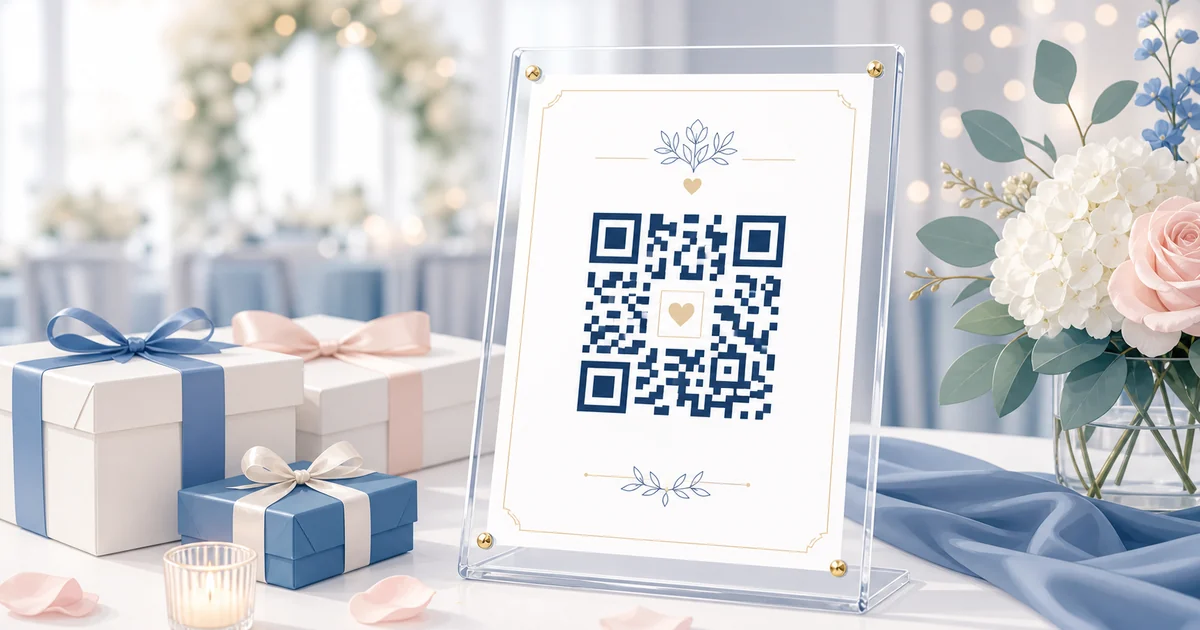
A QR code that looks fine on screen can fail on a printed welcome sign when guests scan from several feet away. Size, contrast, and quiet zone matter more than decorative styling.
This calculator uses the standard scan-distance rule — one inch of QR width per ten inches of viewing distance — and adjusts for your sign format and print surface.
How It Works
- Set viewing distance: Choose how far guests will typically stand when scanning — welcome signs are farther than table cards.
- Pick sign size: Select your print format so the tool can check whether the sign can fit a scannable QR.
- Review print specs: Get recommended dimensions, quiet zone, DPI targets, and a scan reliability rating.
Why QR Size Affects Upload Rates
Undersized codes are the most common reason guests abandon a scan. Phone cameras need enough physical module size to lock focus quickly, especially in dim reception lighting.
Common Sizing Mistakes
- Tiny QR codes on large entrance signs.
- Low-contrast colors on textured paper.
- Busy backgrounds with no solid white quiet zone.
- Exporting at screen resolution instead of print DPI.
Frequently Asked Questions
What DPI should I use for a printed QR code?
150 DPI is the minimum for reliable scanning. Use 300 DPI for welcome signs and posters where print crispness matters.
Can I use colored QR codes on wedding signs?
Styled codes can work but scan less reliably than black on white. Test early and keep strong contrast on mission-critical signs.
Where do I get the actual QR code?
Create a Guest Clicks event to get the private upload page and QR code. You can then paste the upload link into the public sign tool to preview the final sign, or download the QR code from your event dashboard.
Create Your QR Code
Set up your event, download a scannable QR code, and connect it to the sign dimensions you calculated here.
Create Your QR CodeExplore Guest Clicks
- Home
- Features built for simple guest photo collection
- Pricing for QR code photo sharing
- Why Guest Clicks exists
- Contact Guest Clicks
- Event photo sharing tips and guides
- Guest Clicks help center
- Guest Clicks privacy policy
- Guest Clicks terms of service
- Wedding photo sharing without the friction
- Corporate event photo sharing that attendees actually use
- Birthday photo sharing without chasing guests
- Wedding QR Code Sign Generator
- Disposable Camera Cost Calculator
- QR Code Scan Size Calculator
- Event Photo Sharing Wording Generator
- Guest Clicks vs Google Photos
- Guest Clicks vs WedUploader
- Guest Clicks vs GuestPix
- Guest Clicks vs The Guest
- Disposable Cameras vs QR Code Photo Sharing
- Disposable Camera Alternatives for Events
- Wedding QR Code Sign Templates
- Guest Clicks Facts
- How to Collect Wedding Guest Photos
- Wedding Photo Sharing QR Code
- Wedding Photo Sharing Without an App
- Best Wedding Photo Sharing Apps
- Wedding Guest Photo Upload Link
- Corporate Event Photo Sharing QR Code
- Conference Photo Sharing
- Company Party Photo Sharing
- Event Photo Moderation for Corporate Events
- Internal Event Photo Collection
- Birthday Party Photo Sharing QR Code
- Graduation Party Photo Sharing
- Reunion Photo Sharing
- Baby Shower Photo Sharing
- What Disposable Cameras Really Cost Per Usable Wedding Photo
- Wedding Photo Collection Checklist
- Corporate Event Photo Privacy Checklist
- Google Photos Event Sharing Alternatives
- Wedding Photo Sharing App Alternatives
- Wedding Vendor Photo Resources